Optimize Content Distribution with Online Binders

Enhance Collaboration and Efficiency

Drawing of 6 adults from the top down working across a square table

The challenges of using a shared drive to distribute resources:

  • Nesting folders makes it hard to quickly access material.
  • Varied naming conventions among team members create inconsistencies.
  • Shared folders can be either too easy to edit or too strict to share with groups of people.

    Ensure Your Stakeholders Perform At Their Best

    • Intuitive Organization

      Everyone is familiar with how binder tabs organize content. Your files and website URLs are organized in rows of tabs and sub tabs in your binders.

    • Maintain Control

      Your viewers can't change the order of the tabs or compromise the content you place in your binders.

    • Keep Resources Centralized

      The fixed structure of the binder gives everyone the same consistent access to material knowing everything is in its proper place.

    • Build Team Confidence

      Your stakeholders can consistently and quickly find what they need.

    Headhsot of Susan Brooks-Young
    LiveBinders had just come out, and I was so excited because it was better than just a list kind of thing.

    Susan Brooks-Young

    |

    Education Tech Specialist and Published Author and Speaker

    How Online Binders Work

    1. Sign up for a free account and get started on your first online binder
    2. Upload a file, embed a web page or application link and add instructions for each tab
    3. Share your online binder URL through e-mail or embed it on your website or LMS
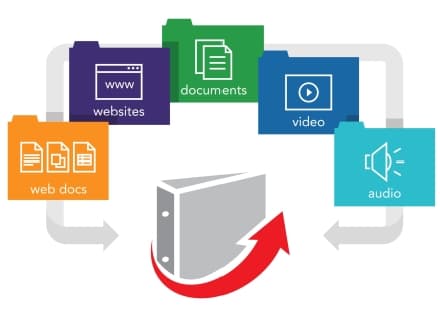
    Livebinders Logo with grey binder and a red arrow across the bottom of the binder icon pointing to upper right of binder. There is a grey arrow surrounding the top of the binder from left to right centering on the binder icon. Across the grey arrow floating above the binder icon are 5 file types. On the left is an orange folder tab square with a white outline of "web docs." Then purple tab folder with white outline of "websites." Next is a green tab folder with a white outline of "documents." Then a blue tab folder with a white outline of "videos." Last is a teal colored folder with a white outline of "audio."

    See How Online Binders Work

    Example Digital Binders And Their Most Powerful Content

    Binder icon :R18mtutrnb:AR Teaching, Learning & Assessment System (ATLAS)

    AR Teaching, Learning & Assessment System (ATLAS)

    Binder icon :R196tutrnb:Thriving Schools- SBCSS

    Thriving Schools- SBCSS

    Binder icon :R19mtutrnb:Health Clerk Binder

    Health Clerk Binder

    Binder icon :R1a6tutrnb:TJC Admissions and Onward Career Planning Resources

    TJC Admissions and Onward Career Planning Resources

    Binder icon :R1amtutrnb:MEDZED COVID-19 Resource Guide

    MEDZED COVID-19 Resource Guide

    Binder icon :R1b6tutrnb:FAQ Handbook

    FAQ Handbook

    Binder icon :R1bmtutrnb:NURSING FACULTY HANDBOOK

    NURSING FACULTY HANDBOOK

    Binder icon :R1c6tutrnb:SSHS CTE Policies & Procedures Manual

    SSHS CTE Policies & Procedures Manual

    Binder icon :R1cmtutrnb:Northwest: NC KEA Formative Assessment Resources

    Northwest: NC KEA Formative Assessment Resources

    Binder icon :R1d6tutrnb:TIF 2.0 Procedure w/ the EsophyX Device

    TIF 2.0 Procedure w/ the EsophyX Device